illustrator椭圆工具设计我要分销符号教程
时间:2024-06-22 20:57:01
来源:网络
浏览:2次
效果图:

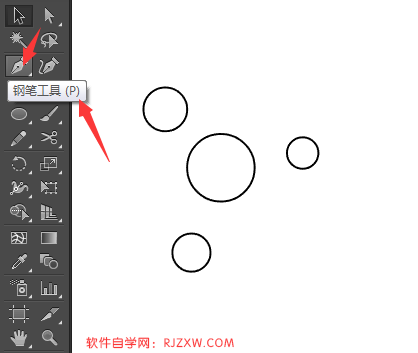
第1步、点击椭圆工具,绘制四个不同大小的圆形出来。
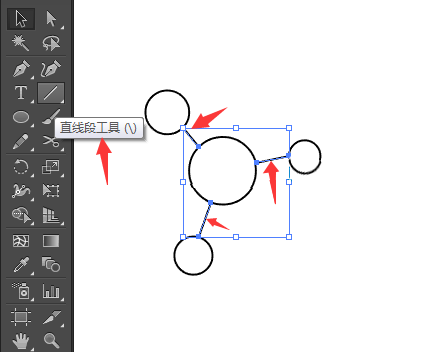
第2步、然后使用直线段工具,绘制三条直线出来。分别连接起来。
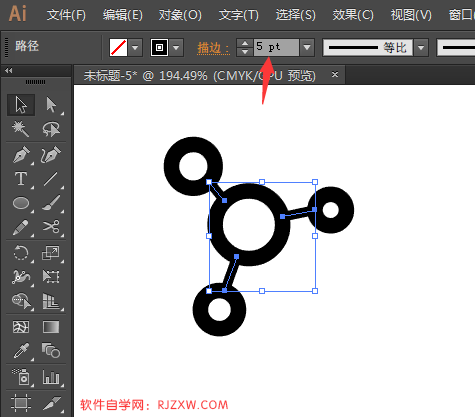
第3步、然后直线设置描边为5pt。
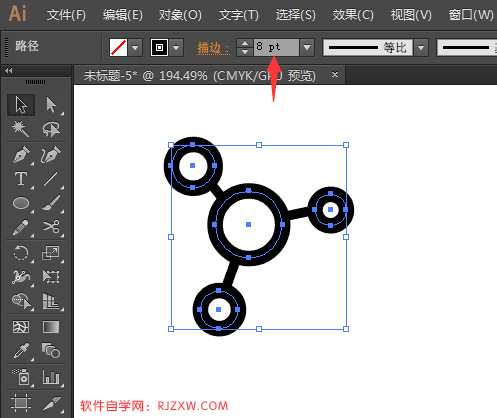
第4步、四个圆设置描边为8pt。
第5步、然后在下面输入我要分销的内容出来。
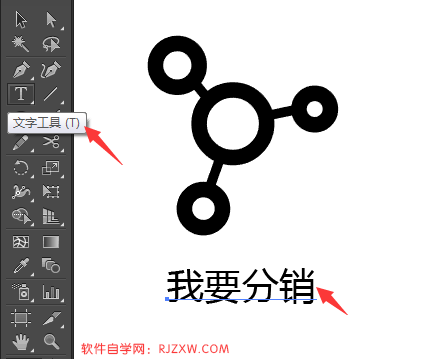
就几步把简易的我要分销符号设计出来了。


效果图:
第1步、点击椭圆工具,绘制四个不同大小的圆形出来。
第2步、然后使用直线段工具,绘制三条直线出来。分别连接起来。
第3步、然后直线设置描边为5pt。
第4步、四个圆设置描边为8pt。
第5步、然后在下面输入我要分销的内容出来。
就几步把简易的我要分销符号设计出来了。